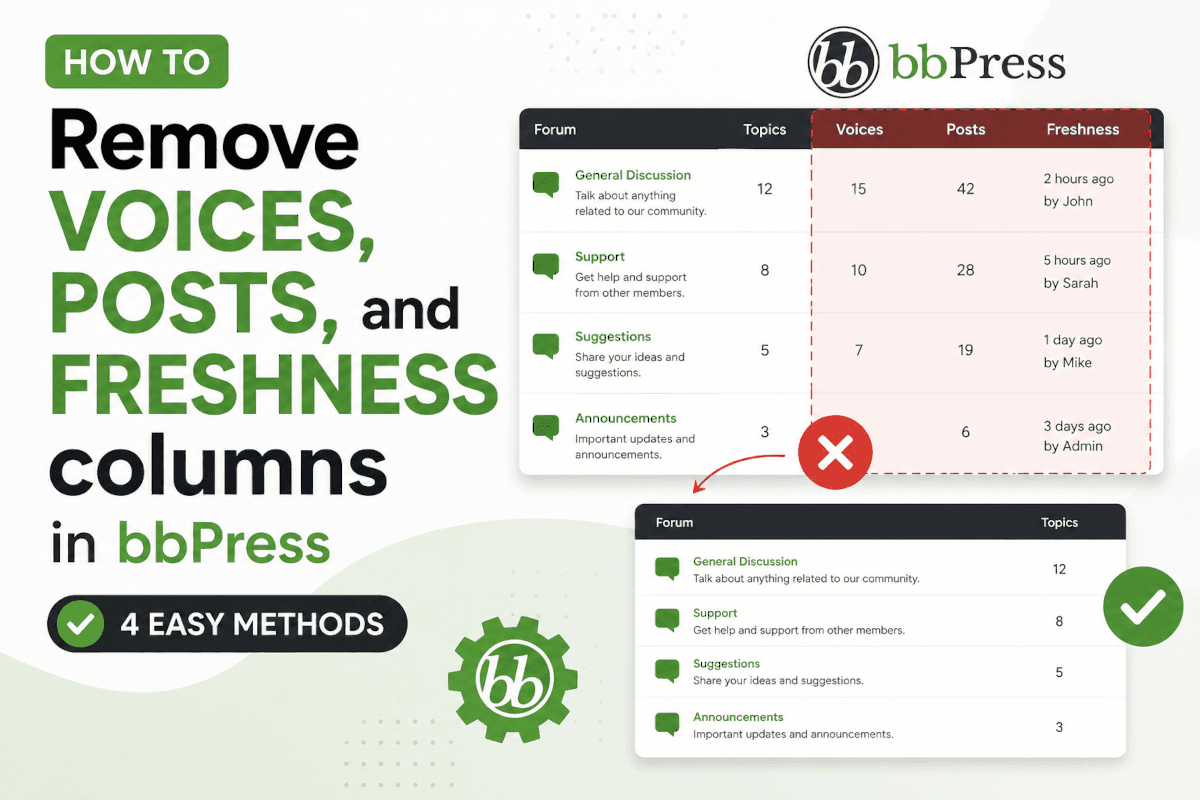
If you're using bbPress to power your WordPress forum, you've probably noticed three default columns displayed on the forum index page:
Voices
Posts
Freshness
These columns provide basic statistics about each forum, such as the number of participants, total posts, and the most recent activity.
While these statistics can be useful for large public communities, many website owners prefer a cleaner and more focused forum layout. Removing these columns can make your forum easier to read, improve mobile usability, and give more space to forum titles and descriptions.
In this guide, you'll learn several beginner-friendly ways to remove these columns safely without affecting your forum data.
What Are the VOICES, POSTS, and FRESHNESS Columns?
Before removing them, it's helpful to understand what each column represents.
Column | Description |
|---|---|
Voices | Number of unique users who have participated in the forum. |
Posts | Total number of topics and replies within the forum. |
Freshness | Displays the latest activity, including the most recent topic or reply. |
These values are generated dynamically by bbPress and are intended to help visitors quickly identify active discussions.
Why Remove These Columns?
Although they're useful in some situations, they aren't necessary for every forum.
Here are the most common reasons website owners remove them.
1. Cleaner User Interface
Less visual clutter means visitors can focus on what matters most—the discussion titles.
Instead of several narrow columns, your forum gains more space for long topic names and descriptions.
2. Better Mobile Experience
On smaller screens, multiple columns make forum tables feel cramped.
Removing unnecessary statistics allows the forum to display more naturally on phones and tablets.
3. New Forums Look More Active
A brand-new community usually shows numbers like:
Forum | Voices | Posts |
|---|---|---|
General Discussion | 0 | 0 |
Announcements | 1 | 1 |
Large areas filled with zeros can unintentionally make a new community appear inactive.
Removing these statistics helps visitors focus on the discussions themselves rather than the numbers.
4. Private Communities
If your forum is only used by:
Employees
Students
Customers
Team members
Premium members
visitor statistics usually don't provide much value.
5. Support Forums
Support forums are designed to help users solve problems quickly.
Visitors care more about:
Question titles
Categories
Replies
They rarely need to know how many people participated in a discussion.
Before You Start
Removing these columns is a safe customization, but it's still good practice to prepare your site.
Create a Backup
Before modifying any PHP files or installing custom code, create a full website backup.
Most hosting providers already include automated backups. If yours doesn't, you can use a trusted backup plugin.
Update WordPress and bbPress
Older versions of WordPress or bbPress may use different template structures or hooks.
Keeping everything updated reduces compatibility issues.
Use a Child Theme
If you plan to edit your theme's functions.php file, always use a child theme.
Editing the parent theme directly means your changes will disappear after the next theme update.
Which Method Should You Choose?
There are multiple ways to remove these columns.
Method | Difficulty | Recommended For |
|---|---|---|
Code Snippets Plugin | ⭐ Beginner | Most users |
Child Theme ( | ⭐⭐ Intermediate | Developers |
Custom Plugin | ⭐⭐⭐ Advanced | Long-term projects |
CSS Only | ⭐ Beginner | Visual changes only |
If you're new to WordPress, Method 1 is the safest and easiest option.
Method 1: Remove the Columns Using the Code Snippets Plugin (Recommended)
Instead of editing theme files, you can safely add PHP code using the free Code Snippets plugin.
This approach keeps your customization separate from your theme, making future theme updates much safer.
Step 1: Install Code Snippets
Log in to your WordPress Dashboard.
Navigate to Plugins → Add New.
Search for Code Snippets.
Install and activate the plugin.
Step 2: Create a New Snippet
Go to:
Snippets → Add New
Give it a name such as:
Remove bbPress Forum ColumnsStep 3: Add the PHP Code
Paste the following code into the editor.
Note: Always verify compatibility with your installed bbPress version before using custom hooks, as implementations can vary between versions and themes.
/**
 * Remove selected columns from the bbPress forum index.
 */

function my_remove_bbpress_columns( $columns ) {

    unset( $columns['forum-voices'] );
    unset( $columns['forum-posts'] );
    unset( $columns['forum-freshness'] );

    return $columns;

}

add_filter( 'bbp_get_forum_column_names', 'my_remove_bbpress_columns' );
Step 4: Save and Activate
Click:
Save Changes
Then activate the snippet.
Visit your forum and refresh the page.
If your current bbPress version supports the filter above, the three columns will disappear immediately.
If Nothing Changes
Some themes override bbPress templates instead of using the default output.
If the columns remain visible, don't worry.
Continue to the next methods below, where we'll cover:
Template overrides
Custom plugins
CSS-based solutions
Troubleshooting common compatibility issues
These approaches work even when themes customize the default bbPress layout.
Advantages of Method 1
✅ No theme editing
✅ Easy to disable
✅ Safe updates
✅ Beginner friendly
✅ Takes less than five minutes
Disadvantages
Depends on bbPress hooks supported by your version.
May not work if your theme completely overrides bbPress templates.
Tip: If you're making several WordPress customizations, the Code Snippets plugin is generally a better choice than placing dozens of functions inside
functions.php. It keeps your custom code organized, easier to manage, and independent of your active theme.
Method 2: Remove the Columns Using a Child Theme (functions.php)
If you already use a child theme, you can place the customization directly inside its functions.php file.
Unlike editing the parent theme, changes made in a child theme won't be lost after updating your WordPress theme.
Important: Never edit the parent theme's
functions.phpfile directly. Theme updates overwrite those changes.
Step 1: Open the Child Theme
Navigate to:
wp-content/themes/your-child-theme/Open the:
functions.phpfile.
If your host disables the built-in Theme File Editor, you can edit the file using:
Your hosting File Manager
FTP (FileZilla)
SSH
VS Code Remote Development
Step 2: Add the Code
Append the following code near the bottom of the file.
/**
 * Remove selected bbPress forum columns.
 */

function my_remove_bbpress_columns( $columns ) {

    unset( $columns['forum-voices'] );
    unset( $columns['forum-posts'] );
    unset( $columns['forum-freshness'] );

    return $columns;
}

add_filter( 'bbp_get_forum_column_names', 'my_remove_bbpress_columns' );
Save the file and refresh your forum.
Why Use a Child Theme?
Using a child theme offers several advantages.
Theme updates won't overwrite your changes.
All custom PHP remains in one place.
Easier to maintain over time.
Recommended by WordPress.
Pros
No additional plugins
Permanent customization
Fast loading
Easy for developers
Cons
Requires editing PHP files
Syntax errors can break the site
Less beginner friendly
Method 3: Create a Small Custom Plugin
If you regularly customize WordPress or manage multiple websites, a dedicated plugin is often the cleanest solution.
Unlike theme-based changes, plugins continue working even if you completely switch themes.
This is the approach many developers prefer.
Step 1: Create a Plugin Folder
Inside:
wp-content/plugins/Create a folder.
Example:
remove-bbpress-columnsStep 2: Create the Plugin File
Create:
remove-bbpress-columns.phpStep 3: Paste the Code
<?php
/**
 * Plugin Name: Remove bbPress Columns
 * Description: Removes the Voices, Posts and Freshness columns from bbPress forums.
 * Version: 1.0.0
 * Author: Your Name
 */

if ( ! defined( 'ABSPATH' ) ) {
    exit;
}

function my_remove_bbpress_columns( $columns ) {

    unset( $columns['forum-voices'] );
    unset( $columns['forum-posts'] );
    unset( $columns['forum-freshness'] );

    return $columns;
}

add_filter( 'bbp_get_forum_column_names', 'my_remove_bbpress_columns' );
Save the file.
Step 4: Activate the Plugin
Go to:
Plugins → Installed Plugins
Locate:
Remove bbPress ColumnsClick:
ActivateVisit your forum to verify the changes.
Why Use a Plugin?
A custom plugin is ideal when:
You frequently change themes.
You maintain several websites.
You want reusable customizations.
You keep all site-specific code outside the theme.
Method 4: Hide the Columns Using CSS
If you only want to remove the columns visually, CSS is the easiest method.
No PHP knowledge is required.
However, remember that CSS only hides the elements from visitors. The HTML is still generated by bbPress.
Step 1
Navigate to:
Appearance → Customize → Additional CSS
or
Appearance → Editor → Styles → Additional CSS
depending on your WordPress version.
Step 2
Paste:
.bbp-forum-voices,
.bbp-forum-posts,
.bbp-forum-freshness{
    display:none!important;
}
Publish your changes.
Refresh the forum.
The columns should now disappear.
Pros
Extremely easy
No PHP
Safe
Instant
Cons
HTML still exists
No performance improvement
Theme updates could require CSS adjustments
Which Method Is Best?
Situation | Best Choice |
|---|---|
Beginner | Code Snippets Plugin |
Developer | Child Theme |
Agency | Custom Plugin |
Quick visual change | CSS |
Multiple websites | Custom Plugin |
Frequently changing themes | Custom Plugin |
For most users, the Code Snippets method offers the best balance of simplicity, safety, and maintainability.
Troubleshooting
Sometimes the columns remain visible after adding the code.
Here are the most common reasons.
1. Your Theme Overrides bbPress Templates
Many premium WordPress themes include their own bbPress template files.
Instead of using the default templates, they load customized versions that may ignore certain hooks.
Check whether your active theme contains a folder such as:
your-theme/
    bbpress/
If it does, you may need to modify the template files instead of relying on filters.
2. Clear Your Cache
Caching can prevent recent changes from appearing.
Clear:
WordPress cache plugin
Object cache
CDN cache
Browser cache
Then perform a hard refresh.
Windows:
Ctrl + F5macOS:
Cmd + Shift + R3. Plugin Conflict
Temporarily disable plugins that customize bbPress.
Examples include:
BuddyBoss
Forum styling plugins
Theme enhancement plugins
Check whether the columns disappear afterward.
4. PHP Syntax Error
A missing bracket or semicolon can stop WordPress from loading.
If your website displays:
There has been a critical error on this website.
Review your recent code changes or restore the previous version.
5. bbPress Version Differences
Some filters and template structures differ between bbPress releases.
If a snippet from an older tutorial doesn't work, compare it with the current bbPress source code or official documentation before assuming the issue is with your site.
Common Mistakes
Avoid these beginner mistakes.
Editing the Parent Theme
Updates erase your changes.
Always use a child theme or plugin.
Using Microsoft Word
Word processors replace quotation marks with smart quotes.
These will break PHP code.
Always use:
VS Code
Notepad++
Sublime Text
WordPress editor
File Manager editor
Forgetting to Backup
Always create a backup before editing PHP.
Even experienced developers make mistakes.
Forgetting to Activate the Snippet
Saving a snippet isn't enough.
Most snippet plugins require clicking Activate before the code runs.
Frequently Asked Questions
1. Will removing these columns delete any forum data?
No.
Removing the Voices, Posts, or Freshness columns only changes what visitors see on the forum page. Your forums, topics, replies, user statistics, and database records remain completely unchanged.
2. Which method is best for beginners?
The Code Snippets plugin is usually the easiest and safest choice.
It lets you add PHP code without editing your theme files, and you can enable or disable the customization with a single click.
3. Can I remove only one column instead of all three?
Yes.
For example, to remove only the Freshness column, remove just that array entry.
unset( $columns['forum-freshness'] );Likewise:
unset( $columns['forum-voices'] );or
unset( $columns['forum-posts'] );This gives you complete control over which statistics remain visible.
4. Will this improve website performance?
Not significantly.
If you remove the columns using PHP, bbPress may perform slightly less rendering work, but the performance difference is usually too small for visitors to notice.
If you hide the columns using CSS, there is no performance improvement, because the HTML is still generated and sent to the browser.
5. Will this affect SEO?
No.
Search engines don't use these forum statistics when ranking your pages.
Removing the columns won't hurt your SEO.
In fact, a cleaner layout may improve readability and user experience, especially on mobile devices.
6. Will the columns return after updating WordPress?
That depends on the method you used.
Method | Lost After Theme Update? |
|---|---|
Code Snippets | No |
Child Theme | No |
Parent Theme | Yes |
Custom Plugin | No |
CSS in Customizer | No |
7. Does this work with BuddyBoss?
BuddyBoss includes its own forum styling and template overrides.
The CSS method usually works without issue, but PHP snippets may require adjustments depending on your BuddyBoss version.
Always test changes on a staging site first.
8. Why didn't anything change after adding the code?
Possible reasons include:
Your theme overrides bbPress templates.
You're using an older bbPress version.
The code snippet wasn't activated.
Cached files are still being served.
Another plugin is overriding the output.
Start by clearing your cache and temporarily switching to a default WordPress theme to isolate the issue.
9. Can I restore the columns later?
Absolutely.
Simply:
Disable the Code Snippet.
Remove the PHP code.
Deactivate the custom plugin.
Delete the CSS.
The default bbPress layout will return immediately.
10. Does this work with all WordPress themes?
Most themes work without any issues.
However, some premium themes include customized bbPress templates that override the default behavior.
If your theme provides its own forum templates, additional template modifications may be required.
11. Is CSS or PHP better?
It depends on your goal.
Goal | Recommended Method |
|---|---|
Visual change only | CSS |
Permanent customization | PHP |
Theme-independent | Plugin |
Beginner | Code Snippets |
12. Should I edit functions.php directly?
Only if you're using a child theme.
Editing the parent theme is not recommended because updates will overwrite your changes.
Best Practices
When customizing bbPress, following a few best practices will make future maintenance much easier.
Always create a backup before editing PHP files.
Test changes on a staging website whenever possible.
Keep WordPress, bbPress, and your theme updated.
Use a child theme instead of modifying the parent theme.
Store reusable customizations in a plugin or Code Snippets.
Clear all caches after making changes.
Document custom code so you remember why it was added.
These habits help prevent problems after updates and make troubleshooting much simpler.
Security Considerations
The snippets shown in this guide only modify the forum's appearance.
They:
Do not expose sensitive information.
Do not modify your database.
Do not change user permissions.
Do not affect login security.
However, whenever you add custom PHP code:
Download snippets only from trusted sources.
Review the code before installing it.
Test on a staging site if possible.
Keep regular backups.
Summary
Here's a quick comparison of the four methods discussed in this guide.
Method | Difficulty | Safe | Theme Independent | Recommended |
|---|---|---|---|---|
Code Snippets | ⭐ | ✅ | ✅ | ⭐⭐⭐⭐⭐ |
Child Theme | ⭐⭐ | ✅ | ❌ | ⭐⭐⭐⭐ |
Custom Plugin | ⭐⭐⭐ | ✅ | ✅ | ⭐⭐⭐⭐⭐ |
CSS | ⭐ | ✅ | ✅ | ⭐⭐⭐ |
For most WordPress users, Code Snippets offers the best combination of simplicity, safety, and long-term maintainability.
Developers managing multiple websites may prefer creating a lightweight custom plugin.
If you simply want to hide the columns visually, CSS is the quickest solution.
Final Thoughts
The Voices, Posts, and Freshness columns are useful for many public discussion forums, but they aren't essential for every website.
Removing them can create a cleaner layout, improve mobile readability, and place greater emphasis on your forum categories and discussions rather than statistics.
Whether you're running a support community, an internal knowledge base, a customer portal, or a brand-new forum, choosing the right customization method depends on your experience level and long-term maintenance strategy.
For most website owners, using the Code Snippets plugin is the safest and most beginner-friendly option. Developers who prefer complete control can use a child theme or custom plugin, while CSS provides a quick solution when only visual changes are needed.
Whichever approach you choose, remember to:
Create a backup before making changes.
Test custom code on a staging site whenever possible.
Keep WordPress, bbPress, plugins, and themes updated.
Clear your cache after applying changes.
With these best practices, you can confidently customize your bbPress forum while keeping it stable, maintainable, and easy for your visitors to use.