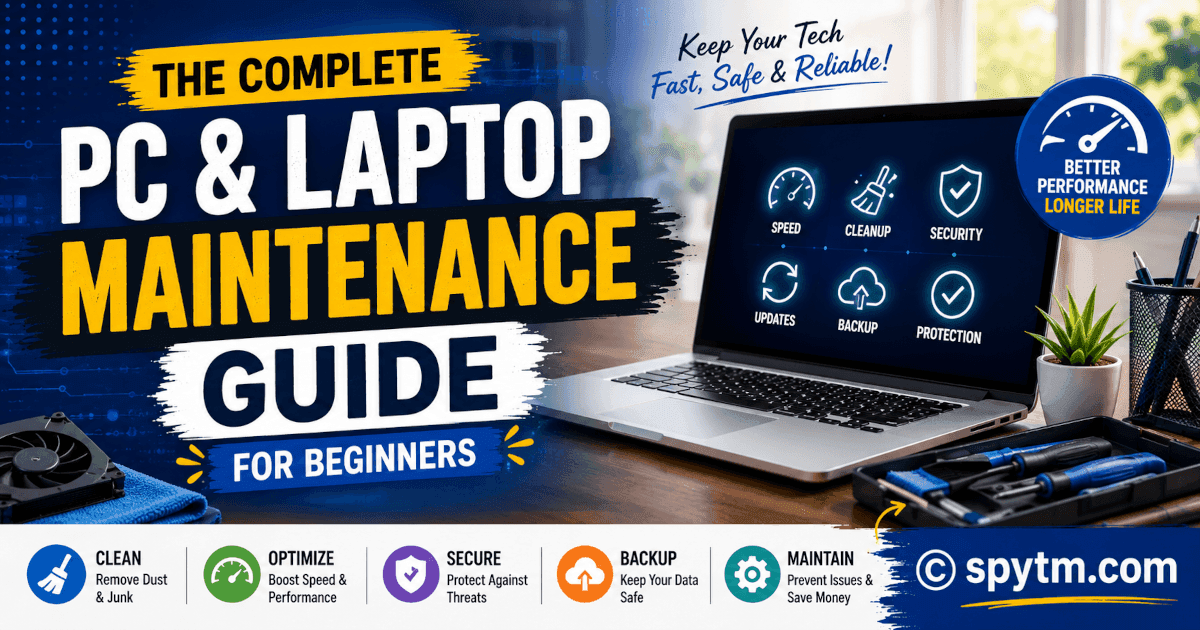
Whether you use a desktop computer for work or a laptop for study and entertainment, proper maintenance is essential. Many people believe that computers become slow only because they are old. In reality, even a powerful computer can become sluggish if it is not maintained properly.
Regular computer maintenance improves speed, increases reliability, reduces repair costs, extends hardware lifespan, and protects your valuable data. The good news is that maintaining a computer does not require technical expertise. By following a few simple habits, you can keep your computer running smoothly for years.
This guide explains the best computer and laptop maintenance tips for beginners, including hardware care, software maintenance, security practices, and battery management.
Why Regular Computer Maintenance Matters
A well-maintained computer offers several compounding benefits over its lifespan:
Benefit | Description |
Better Speed | Applications open faster and run smoothly. |
Longer Lifespan | Hardware components last longer, delaying expensive upgrades. |
Improved Security | Protection against malware, ransomware, and hackers. |
Reduced Repair Costs | Prevents expensive hardware failures before they happen. |
Better Stability | Fewer crashes, freezes, and system errors. |
Data Protection | Drastically reduces the risk of catastrophic data loss. |
Real-World Example:
Imagine two identical laptops purchased on the same day.
Laptop A is cleaned regularly, updated frequently, and protected from overheating.
Laptop B is never cleaned, never updated, and filled with junk files.
After three years, Laptop A still performs well. Laptop B becomes slow, overheats frequently, and may require costly repairs. The only difference is maintenance.
Computer Hardware Maintenance Tips
1. Clean the Exterior Regularly
Dust, dirt, and oils accumulate on computers over time, especially on high-touch surfaces.
Tools to Use: Soft microfiber cloth, screen cleaning solution, and a small soft brush.
What to Clean: Monitor, keyboard, mouse, laptop body, and air vents.
Why It Matters: Dust blocks airflow, causing heat buildup which degrades performance.
Common Mistake: Using wet cloths or spraying liquid directly onto the screen. Always spray cleaner onto the cloth first.
2. Clean Internal Components
Desktop computers and laptops act like vacuums, pulling in dust that coats internal components.
Target Areas: CPU cooler, processor fan, power supply fan, and graphics card fans. Dust acts like a blanket that traps heat and suffocates your processor.
How Often? Every 3 to 6 months (more frequently in dusty environments or if you have pets).
Best Practice: Use compressed air to blow out dust safely. Do not use a household vacuum, as it can cause static damage.
3. Keep Air Vents Clear
Air vents allow hot air to escape the chassis. Blocked vents cause overheating, random shutdowns, and throttled performance.
For Laptops: Avoid placing them on beds, pillows, blankets, or cushions.
Instead Use: Hard, flat surfaces, laptop stands, or cooling pads to ensure proper airflow.
4. Protect Ports and Connectors
Handle your USB ports, charging ports, HDMI ports, and audio jacks carefully.
Avoid forcing cables into ports at odd angles.
Yanking cables can damage the port internally, and replacing a soldered port on a motherboard is often very expensive.
5. Keep Your Computer Cool
Heat is one of the biggest enemies of computer hardware and battery life.
Ideal Practices: Use your computer in ventilated rooms, avoid direct sunlight, and maintain a reasonable room temperature.
Signs of Overheating: Loud fan noise (sounding like a jet engine), slow performance, frequent crashes, and unexpected shutdowns.
6. Give Your Computer Rest
Many people keep their computers running for weeks without a reboot. Restarting helps clear temporary memory (RAM), refreshes system processes, and finalizes software updates.
Recommendation: Restart at least once every few days.
For Heavy Users: Shut down at night and restart weekly.
Software Maintenance & Optimization
Interactive tools can help you visualize how your storage is being used. Try the simulator below to see how standard cleanup tasks can reclaim massive amounts of drive space.
7. Remove Unused Programs
Unused software consumes disk space, background RAM, and system resources.
How to Check: Review installed programs every few months.
What to Uninstall: Old games, expired trial software, and duplicate applications.
8. Delete Temporary Files
Windows and applications create temporary files constantly. Over time, they accumulate and waste gigabytes of storage.
Benefits: Faster performance, more storage space, and reduced system clutter.
Built-in Tools: Use Disk Cleanup or Storage Sense (Windows).
Third-party: CCleaner (use with caution and disable background monitoring).
9. Manage Startup Programs
Many applications silently set themselves to start automatically when Windows loads (e.g., chat apps, game launchers, update monitors). Too many startup apps will severely slow your boot times.
How to Fix: Open Task Manager > Startup Apps and disable unnecessary programs.
10. Keep Windows Updated
Operating system updates provide vital security patches, performance improvements, and bug fixes.
Action: Enable Automatic Updates by going to Settings > Windows Update and installing them regularly.
11. Update Software Applications
Outdated software may contain unpatched security vulnerabilities, compatibility issues, and performance bugs. Keep your browsers, office suites, media players, and security tools up to date.
12. Defragment Traditional Hard Drives (HDDs)
If you have an older mechanical hard drive, defragmentation organizes scattered files to improve read/write speeds.
Frequency: Once per month.
CRITICAL WARNING: Do NOT manually defragment Solid State Drives (SSDs). It wears out the flash memory and reduces its lifespan.
13. Monitor Storage Space
A nearly full drive drastically slows down system performance.
Recommendation: Always keep at least 15%–20% of your drive free.
Common Mistake: Storing absolutely everything on the main system drive (C: Drive). Use separate external or secondary drives for large media files (videos, photos) and backups.
Security Maintenance & Protection
14. Install Reliable Antivirus Protection
A robust antivirus protects your system against viruses, ransomware, spyware, and malware.
Top Options: Microsoft Defender (built-in and excellent), Bitdefender, ESET, or Avast.
Schedule: Run a quick scan daily and a deep/full scan weekly.
15. Be Careful What You Download
Best Practice: Only download software from official developer websites and trusted vendors.
Avoid: Cracked software, pirated applications, and shady file-sharing sites.
Warning: Many free "PC booster" or "Driver updater" tools are actually malware disguised as utilities.
16. Avoid Suspicious Email Attachments
Cybercriminals often use phishing emails disguised as fake invoices, delivery notices, or urgent account warnings to deploy malware. Never open attachments or click links from unknown senders.
Data Backup Best Practices
17. Back Up Important Files
Hardware failures happen unexpectedly. A dead hard drive shouldn't mean losing years of memories or crucial work. Always maintain backups of your documents, photos, videos, and business files.
18. Follow the 3-2-1 Backup Rule
The gold standard for data protection is the 3-2-1 strategy:
Rule | Description | Example Implementation |
3 Copies | Keep three total copies of your data. | The original file on your PC + two backups. |
2 Media Types | Store on different devices. | Your PC's internal drive + an external USB hard drive. |
1 Offsite Copy | Cloud backup or remote storage. | A copy synced to Google Drive or OneDrive. |
Popular Cloud Services: Google Drive, OneDrive, Dropbox, and iCloud automatically sync your files safely offsite.
Laptop Battery Care & Maintenance
Battery technology has changed, and older advice doesn't always apply to modern lithium-ion cells.
19. Avoid Extreme Heat
Heat degrades battery health and reduces maximum capacity faster than any other factor. Keep vents clear, use cooling pads, and never leave your laptop in a hot car.
20. Avoid Frequent Deep Discharges
Modern lithium-ion batteries undergo unnecessary stress when drained to zero.
Best Practice: They perform best when kept between 20% and 80%.
Action: Try to plug in your charger when you hit 20% to 30%, instead of waiting for the laptop to die completely.
21. Use Original Chargers
Cheap, aftermarket chargers can cause permanent battery damage, overheating, and motherboard failures. Always use the original charger or a manufacturer-approved replacement.
22. Store Batteries Properly
If you plan to store a laptop away for several weeks or months:
Charge or drain the battery to around 50%.
Turn the laptop off completely.
Store it in a cool, dry place.
The Ideal Computer Maintenance Schedule
Stay on top of your system's health by following this simple routine:
Task | Frequency |
Clean screen and keyboard | Weekly |
Delete temporary files | Weekly |
Run full antivirus scan | Weekly |
Back up important files | Weekly |
Install Windows/OS updates | Monthly |
Check storage space | Monthly |
HDD defragmentation (HDDs only) | Monthly |
Review installed software | Every 3 Months |
Clean internal dust / fans | Every 3–6 Months |
Common Computer Maintenance Mistakes
Never updating Windows: Leaves you open to critical security risks.
Ignoring backups: Guarantees eventual data loss when a drive fails.
Blocking air vents: Causes severe thermal throttling and overheating.
Installing random software: Leads to bloatware and malware infections.
Letting storage fill completely: Causes the operating system to crawl and freeze.
Using fake chargers: Risks electrical hardware damage and fire hazards.
Never cleaning dust: Reduces the lifespan of internal components.
Ignoring antivirus warnings: Invites active security threats into your personal data.
Pros and Cons of Regular Maintenance
Pros | Cons |
Faster, more responsive system speeds | Requires a small time commitment |
Significantly longer hardware lifespan | Needs consistency to be effective |
Fewer unexpected crashes and errors | Occasional learning curve for new users |
Highly improved security | Premium antivirus/tools may cost money |
Reduced long-term repair costs | Offsite/Cloud backup storage may have subscription fees |
Overall better user experience | None significant |
Frequently Asked Questions (FAQs)
How often should I clean my computer?
Basic external cleaning (screen, keyboard) should be done weekly, while internal dust cleaning (fans, heatsinks) should be performed every 3 to 6 months.
Does deleting temporary files improve performance?
Yes. Removing temporary files frees up storage space on your primary drive, which improves the responsiveness of your operating system.
Should I use CCleaner?
CCleaner can help remove temporary files quickly, but Windows' built-in Storage Sense and Disk Cleanup are often sufficient and safer for most users.
How often should I restart my computer?
Restart at least once every few days. Frequent restarts help refresh system resources and clear out memory leaks from unoptimized apps.
Is antivirus still necessary in Windows 11?
Yes. While Microsoft Defender provides incredibly strong built-in protection, users should still practice safe browsing and downloading habits.
Can overheating damage a laptop?
Yes. Prolonged overheating can drastically shorten the lifespan of batteries, processors, and storage devices.
Should I defragment an SSD?
No. Modern SSDs (Solid State Drives) do not require traditional defragmentation; doing so actually reduces the drive's total lifespan.
What is the best way to back up important files?
Use the 3-2-1 backup strategy: maintain three copies of your data, across two different types of local media, with one copy safely stored in the cloud.
Final Thoughts
Maintaining your computer or laptop does not require advanced technical knowledge or an IT degree. Simple habits such as keeping the device clean, updating software, removing unnecessary files, protecting against malware, and backing up important data can significantly improve performance and extend the life of your device.
Whether you use a desktop PC for work, a gaming computer, or a laptop for everyday tasks, following these basic maintenance practices will help keep your system fast, secure, and reliable for years to come.